A guided first day · No sign-in needed
Turn what matters
into today’s plan.
Watch the walkthrough, then follow the illustrated steps. Start with your Big Three, build a project, and bring a prepared plan in with JSON.
Watch the 6-minute walkthrough
5:47 · Emily’s narration · Captions included
Screenshots use fictional examples in a separate demo account. Expand a step and tap any screenshot to see it larger.
01 / DAILY FOCUS
Your Big Three
Choose the three results that would make today a win. A, B, and C can include work and personal priorities. SMOR means “specific, measurable, objective result.”
1. Name a result and why it matters
Tap an outcome to edit it. Give it a clear finish line, such as “Workshop outline approved,” and add its purpose underneath. Repeat for B and C.
Tap the screenshot to enlarge. Numbers match the steps below.
- 1Name a result you can verify: Workshop outline approved.
- 2Write why this result matters.
- 3Tap the circle only when the outcome is complete.
2. Set a realistic time target
Choose set target beneath the outcome. A target is the amount of time you intend to invest.
Tap the screenshot to enlarge. Numbers match the steps below.
- 1Enter a duration or choose a preset, such as 1h 30m.
- 2Save the target. You still need to reserve a time block.
3. Commit an actual time block
Tap + Commit Time. In the example, 9:00–10:30 AM reserves the full 90-minute target. After saving, check the coverage line beneath the outcome. Scroll down to the 24-hour ring to see your commitments across the day.
Tap the screenshot to enlarge. Numbers match the steps below.
- 1Set the start time, including AM or PM.
- 2Set the end time and check the calculated duration.
- 3Press Commit to reserve the block.
4. Add actions, star a priority, and track completion
MIAs are your most important actions. Make each action concrete enough to start. Completing an action and completing the whole outcome are separate decisions.
Tap the screenshot to enlarge. Numbers match the steps below.
- 1Expand MIAs to see the actions for this outcome.
- 2Choose add action, type a concrete next step, and press Enter.
- 3Tap a star to mark the most important action. Use the square beside an action to complete it.
Check an action’s square when that step is finished. Check the circle beside the outcome when the result itself is achieved.
02 / THE BIGGER RESULT
Your Projects
A project holds the larger effort. Its outcomes describe what you need to achieve along the way; your Big Three brings the right result into a particular day.
1. Open Projects and create a plan
Tap the screenshot to enlarge. Numbers match the steps below.
- 1Open Projects, then tap the current-project card to reveal this menu.
- 2Choose New Project to start a plan.
- 3Use Import from JSON when you already have a prepared plan.
2. Define success, purpose, and a completion date
For “Launch a useful workshop,” success means ten participants leave with a plan they can use tomorrow. The purpose explains why that result matters.
Tap the screenshot to enlarge. Numbers match the steps below.
- 1Name the project and choose a target completion date if useful.
- 2Describe the finished result in Ultimate Vision.
- 3Explain why it matters in Ultimate Purpose, then press Create.
3. Break the project into outcomes and actions
For example: outline approved, ten participants registered, and workshop delivered with feedback collected. Add the actions that will produce each result.
Tap the screenshot to enlarge. Numbers match the steps below.
- 1Break the project into measurable outcomes, then add a purpose for each.
- 2Set a time target or outcome completion date (CMP) when useful.
- 3Expand MIAs and add the actions needed to produce this result.
- 4Open the arrow menu when you want to move this outcome into your daily Big Three.
4. Bring an outcome into your Big Three
Open the arrow menu beside an outcome and choose Move to Big 3. Select the day and slot, then push it into your daily plan.
Tap the screenshot to enlarge. Numbers match the steps below.
- 1Choose Today or Tomorrow. This screenshot shows Today selected; the video uses Tomorrow.
- 2Choose the destination slot: A, B, or C. Check the destination before pushing.
- 3Press Push, then open that day to verify the linked outcome and plan its actions and time.
Open the chosen day and confirm the outcome’s project link. Review the daily actions and commit time for the result.
03 / A HEAD START
Import a prepared plan
JSON is structured text that describes a project and its outcomes and actions. Use the example from the video as your starting format.
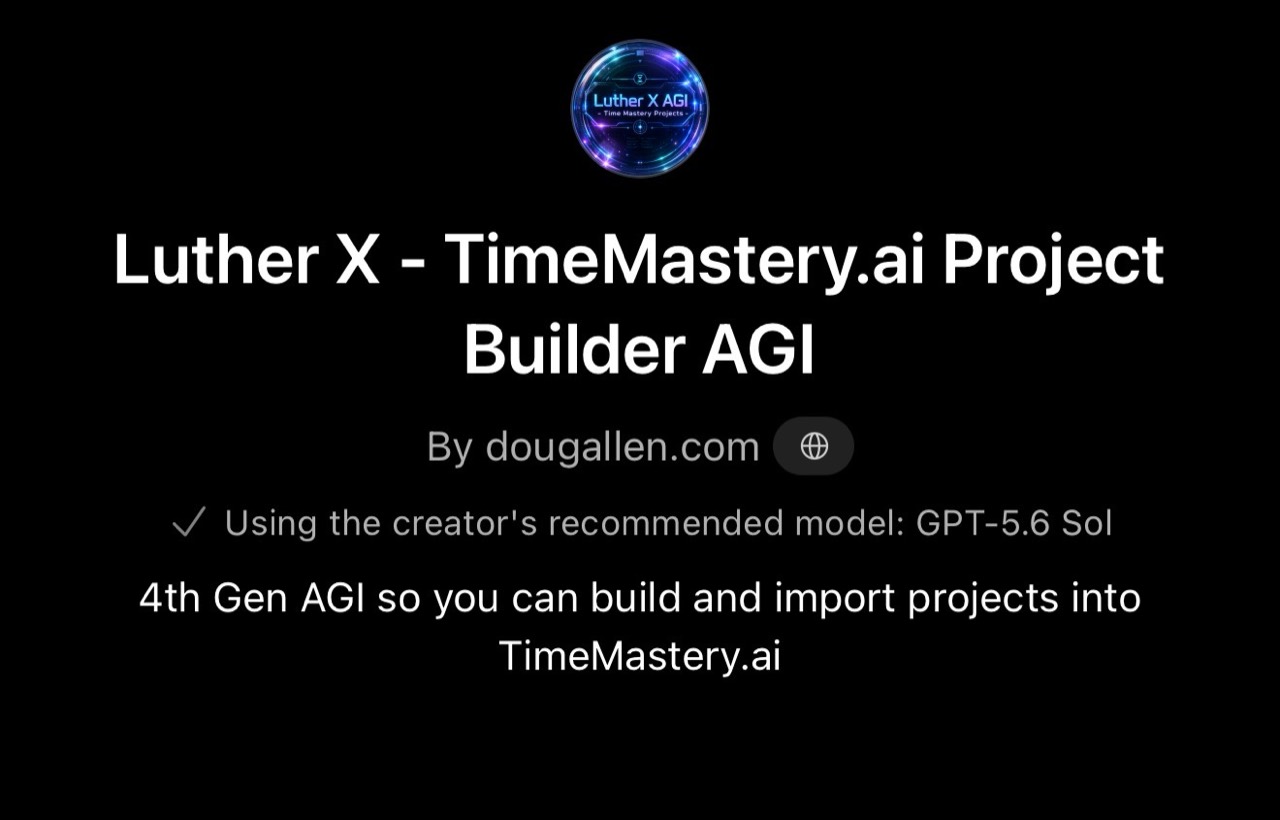
Open the project builder in a new tab to prepare your plan, then return here to import the JSON.
1. Prepare your JSON with an AI assistant
Download the sample project JSON, then give it to your assistant with this prompt:
Help me plan my project using this exact TimeMastery JSON structure. Ask about my result, purpose, and most important actions first. Return one valid JSON object, preserve the outer timemastery_project key, use a unique slot letter for each outcome, and use whole minutes for dur_minutes. Do not invent deadlines or commitments.
Review the plan before importing. Copy the JSON object itself, without any surrounding explanation or code-fence markers.
2. Paste, import, and verify
Open the current-project menu and choose Import from JSON.
Tap the screenshot to enlarge. Numbers match the steps below.
- 1Paste the complete JSON object, including its outer timemastery_project key.
- 2Press Import, then review the project, its three outcomes, and all five actions.
The sample creates “Workshop follow-up plan.” Confirm that the resource pack, feedback review, and seven-day check-in outcomes appear, then expand the actions. Edit the plan to match your own project.